Installing the Outlook add-in
Last updated: April 30, 2026
How to install the Outlook extension
Before setting up the Outlook Extension ensure you've received a Vooma app login and can log into app.vooma.ai
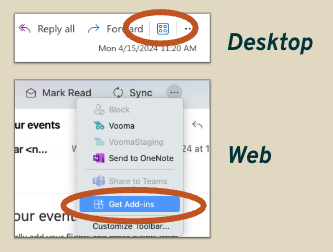
(1) Install Vooma Add-In in Outlook
Called Add-Ins or Apps
Search for ‘Vooma’
Click Install
Works with all versions - desktop, web, Mac
(2) Log into Vooma using your log-in credentials
If this is your first time logging in and the Vooma invite in your email inbox is older than 24 hrs, click on Forgot your password? Reset it here on the login screen

(3) Access app.vooma.ai/integrations from Outlook

Click Outlook logo in app.vooma.ai
Follow instructions given on the Vooma add-in
(4) You're live!

Hit ‘Refresh’ in the Outlook extension
You’re all set!
Common troubleshooting:
It's not uncommon to have trouble seeing the Vooma app show up in Outlook depending on permissions. Here are a few common things to try if you get stuck throughout the above instructions:
If you have already added the add-in, wait 24 hours. It sometimes just becomes visible, depending on organization / Outlook settings
If after 24 hours you still do not see the add-in, check with your IT administrator that the Vooma app is permissioned
An admin may need to add you to Microsoft 365
An admin may need to deploy the add-in directly to you in the Microsoft 365 admin center
If you access your Outlook via a terminal or virtual machine, request your admin to install the extension to your machine for you and re-try the installation and login. Send them the following instructions:
Via Microsoft 365 Admin Center:
Go to admin.microsoft.com
Navigate to Settings → Integrated apps
Click Get apps or Upload custom apps
Search for the add-in in the marketplace or upload a custom manifest
Click Deploy and select deployment options:
Deploy to specific users, groups, or entire organization
Choose whether it's optional or required
Review and complete deployment